



Starting a new website used to feel like a big project every single time I did it. There were always so many decisions to make right at the beginning, from choosing a theme to figuring out what to put on the homepage. And honestly, that initial phase was often the most overwhelming part.
I remember spending hours just trying to get the structure right before even writing a single line of content. It wasn’t that the process was impossible, it just felt unnecessarily time-consuming. Sometimes, that alone was enough to slow down or even delay launching a site.
That’s why the idea of using AI to build a website sounded interesting to me at first. I wasn’t expecting it to replace the entire process, but I was curious if it could at least remove some of the repetitive work. Turns out, it can do a lot more than that.
When I tried the AI Website Builder from WordPress.com, the experience felt very different from the traditional way of building a site. Instead of starting with a blank page, I started with a conversation. I simply described what I wanted, and the system began putting things together almost immediately.
What surprised me most was how complete the result felt right from the beginning. It didn’t just create a layout, but also generated relevant content, structured pages, and a clear direction for the site. It gave me something I could actually work with instead of something I had to fix from scratch.
Of course, it’s not about letting AI take over everything completely. I still like having control over how my website looks and what it says. But having a strong starting point makes the whole process feel faster, smoother, and a lot less stressful.
So if you’ve ever felt stuck or overwhelmed when building a website, this is where things get interesting. The WordPress.com AI Website Builder isn’t just about speed, it’s about changing how the entire process works. And once you see what it can do, it’s hard not to rethink the way websites are created today.
10 Things You Can do With WordPress AI Site Builder
When I first heard about the AI Website Builder from WordPress.com, I wasn’t expecting much beyond a basic site generator. I assumed it would spit out a generic layout that still needed a lot of tweaking afterward. But after actually trying it, I realized it’s way more capable than I initially thought.
What makes it interesting is how it turns a simple idea into a working website in just a few minutes. You describe what you want, and it starts building pages, writing content, and structuring everything almost instantly. It feels less like using a tool and more like giving instructions to a really fast assistant.
The biggest shift for me was how it removes the usual friction of starting a website. Instead of worrying about themes, layouts, and what to write first, the AI gives you a solid starting point right away. From there, it becomes more about refining and customizing rather than building everything from scratch.
So in this section, I’m not just going to talk about vague possibilities. I’m going to walk through specific, practical ways the WordPress.com AI Website Builder can actually transform how you create and manage your site. Let’s start with one of its most impressive capabilities right out of the gate.
1. Creates a Full Website From a Simple Prompt
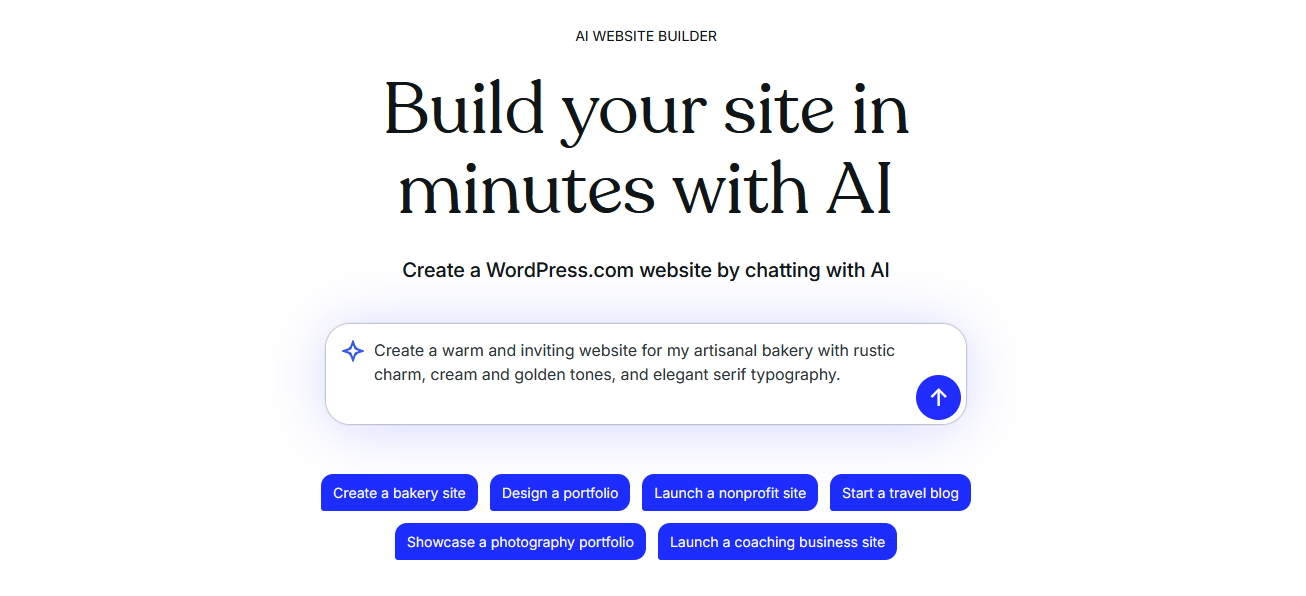
One of the first things that genuinely impressed me about the AI Website Builder from WordPress.com is how quickly it can turn a simple idea into a complete website. I only had to describe the type of site I wanted, and within moments, it started generating pages, layout, and content. It felt like skipping the most time-consuming part of the entire process.
Instead of staring at a blank dashboard and wondering where to begin, I was immediately presented with a structured site. There was already a homepage, supporting pages, and even relevant sections placed in logical order. That alone removed a lot of the usual friction that comes with starting from zero.
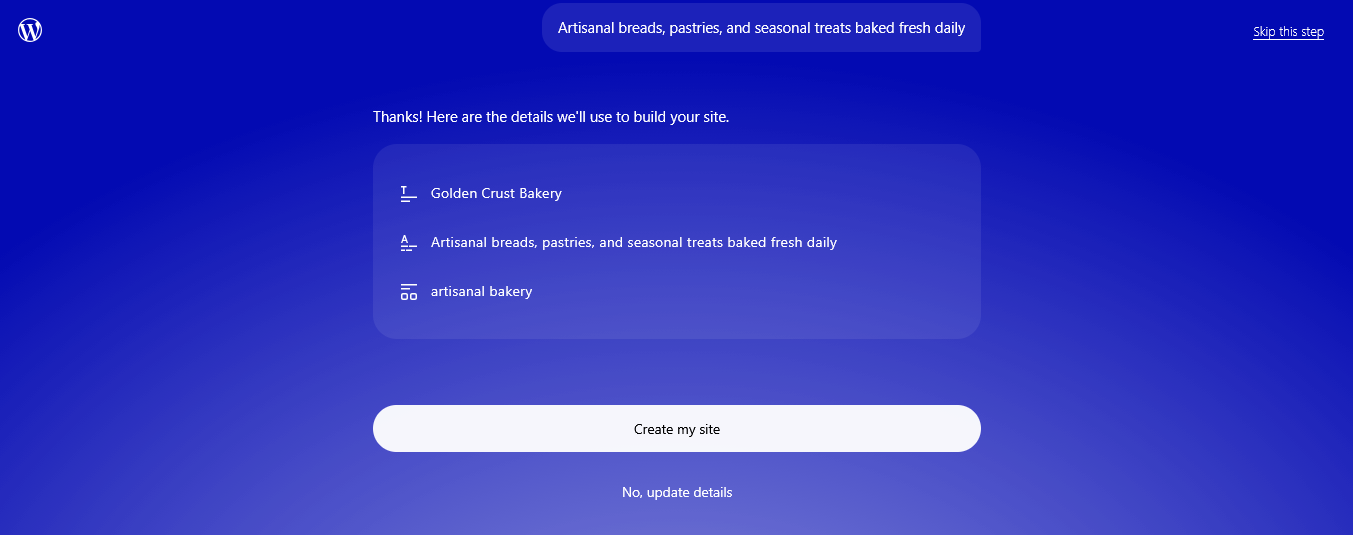
What makes this even more useful is that the result isn’t just random or generic. The AI actually tailors the structure based on your input, so the website feels aligned with your goals right from the start. It gives you a strong foundation that you can build on, rather than something you have to completely redo.
2. Automatically Generates Website Content
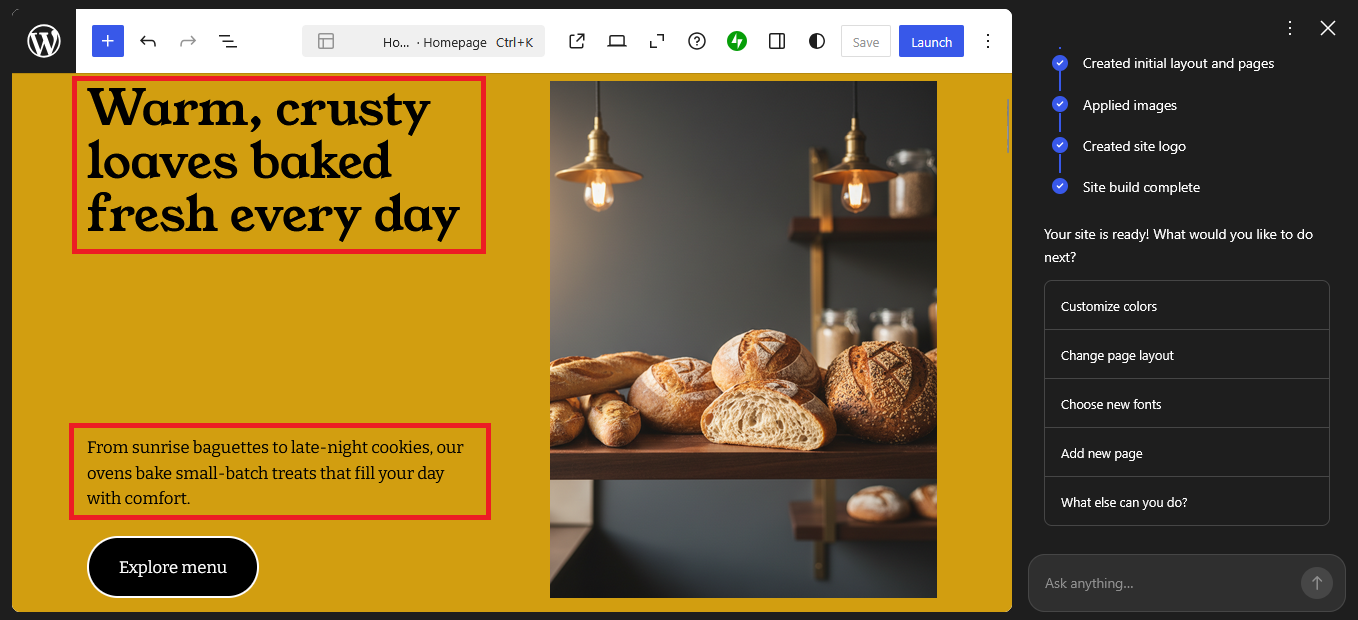
Another thing that stood out to me is how the AI doesn’t just build the structure – it also fills your website with content that’s surprisingly relevant. When I first tried it, I expected placeholder text that I’d have to rewrite completely. But instead, I got readable, topic-specific content that already matched the direction of the site.
This includes things like homepage introductions, service descriptions, and even section headlines that feel natural. It’s not perfect, of course, but it gives you a strong starting point that saves a lot of time. Instead of writing everything from scratch, I found myself editing and refining instead.
What I really like is how this helps when you’re stuck or unsure what to write. The AI gives you something to react to, which makes the whole process feel easier and more creative. It turns content creation from a blank-page problem into a simple editing task.
3. Builds a Clean and Structured Layout
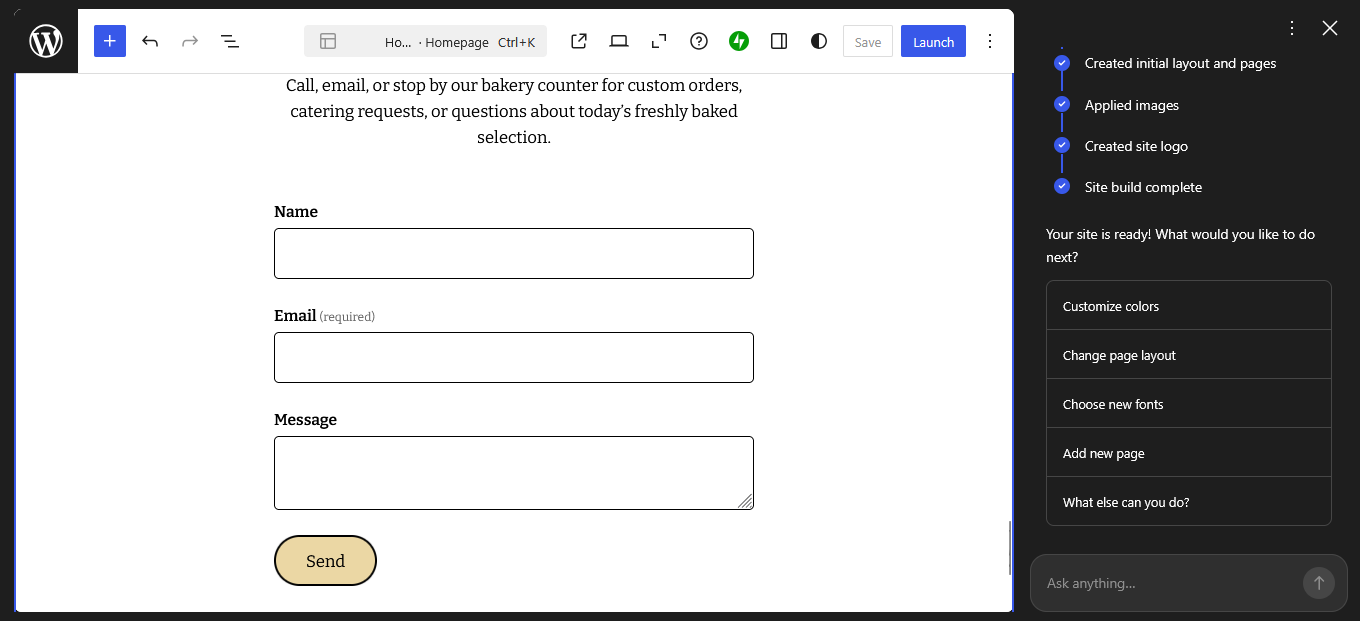
One thing I didn’t expect was how well the AI handles layout and structure without me touching any design settings. Usually, I’d spend a lot of time figuring out where each section should go and how everything should look together. Here, that part was already taken care of from the very beginning.
As soon as the site is generated, you get a layout that feels organized and easy to follow. Key sections like the hero area, content blocks, and call-to-actions are already placed in positions that make sense. It removes that early guesswork that can slow you down.
I also noticed that the spacing and visual flow feel natural without needing manual adjustments. I didn’t have to worry about alignment or whether the page looked balanced. Everything already feels structured in a way that’s comfortable for visitors to read and navigate.
What makes this even better is that it doesn’t feel generic or randomly assembled. The layout actually matches the type of website you’re trying to create, which makes it a solid starting point. From there, it’s just a matter of tweaking details instead of building everything from scratch.
4. Edit Images Directly
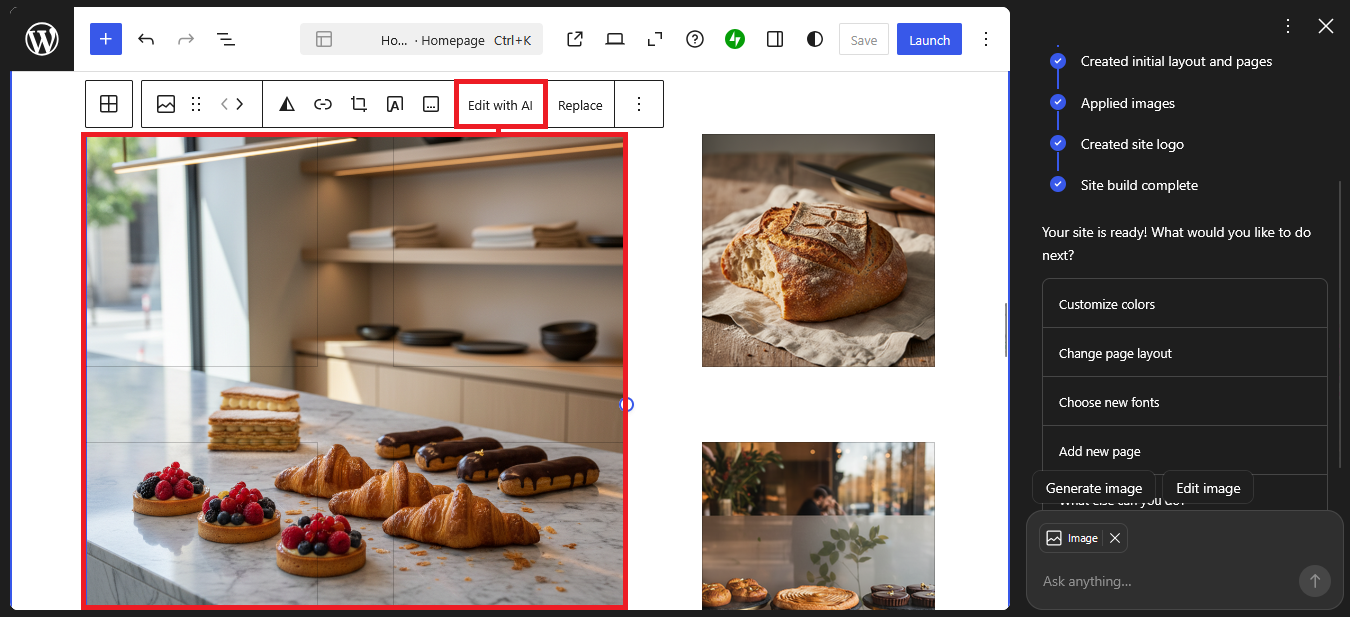
Another feature I found really useful is how easy it is to edit images directly inside the builder. Instead of opening another tool or switching tabs, I can just click on any image I want to change. From there, I simply choose the “Edit With AI” option and start making adjustments right away.
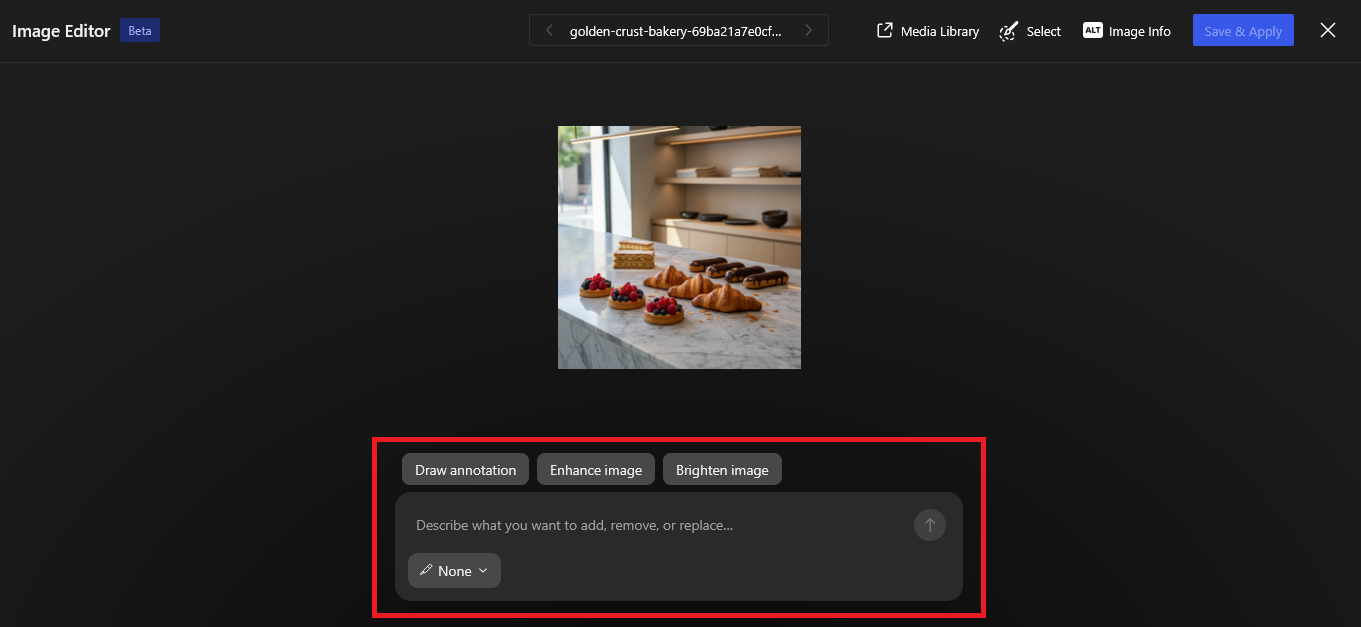
What makes this even better is the variety of editing modes available. I can quickly switch the style of an image to something like vivid, anime, or other visual looks depending on what I need. It’s a simple way to give images a completely different feel without needing design skills.
There are also practical tools that help improve the image quality itself. I can draw annotations, enhance the overall clarity, or even brighten the image with just a few clicks. It feels like having a lightweight image editor built directly into the website builder.
The whole process is fast and straightforward, which means I don’t have to rely on external software anymore. Everything happens in one place, making it much easier to keep my workflow smooth and uninterrupted.
5. Edit Text Instantly
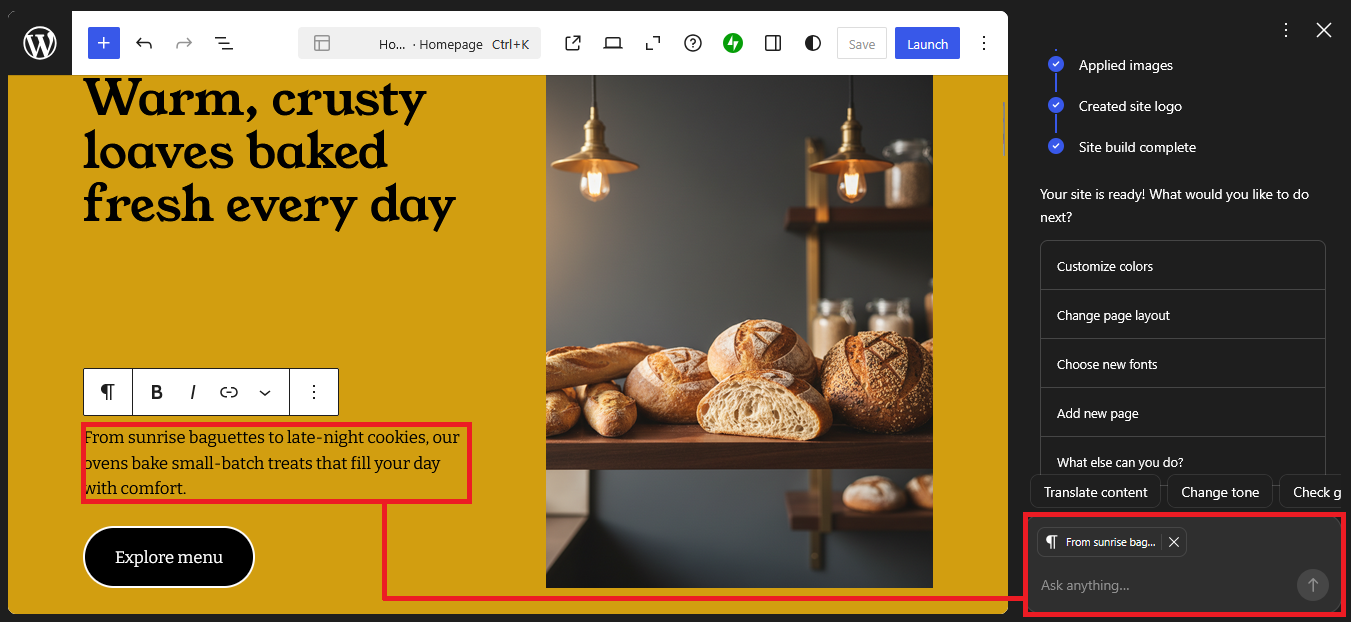
Another feature I found incredibly practical is how easy it is to edit text directly with AI. Instead of rewriting everything manually, I just click on any text or heading I want to change, and it automatically gets selected. From there, I can use the AI chat box to tell it exactly what I want.
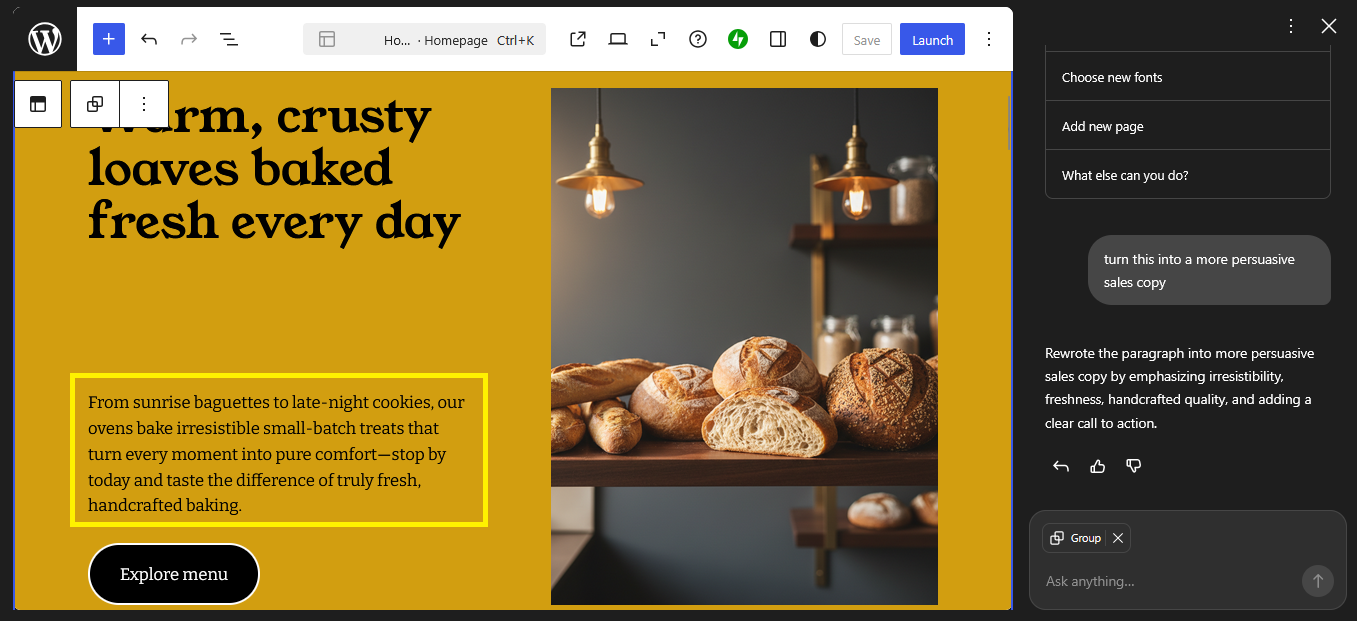
What makes this powerful is how flexible the commands can be. For example, I can type something like “rewrite this in a more friendly tone”, “make this shorter and more engaging”, or even “turn this into a more persuasive sales copy.” Within seconds, the AI updates the text based on my request.
6. Translate Website Content
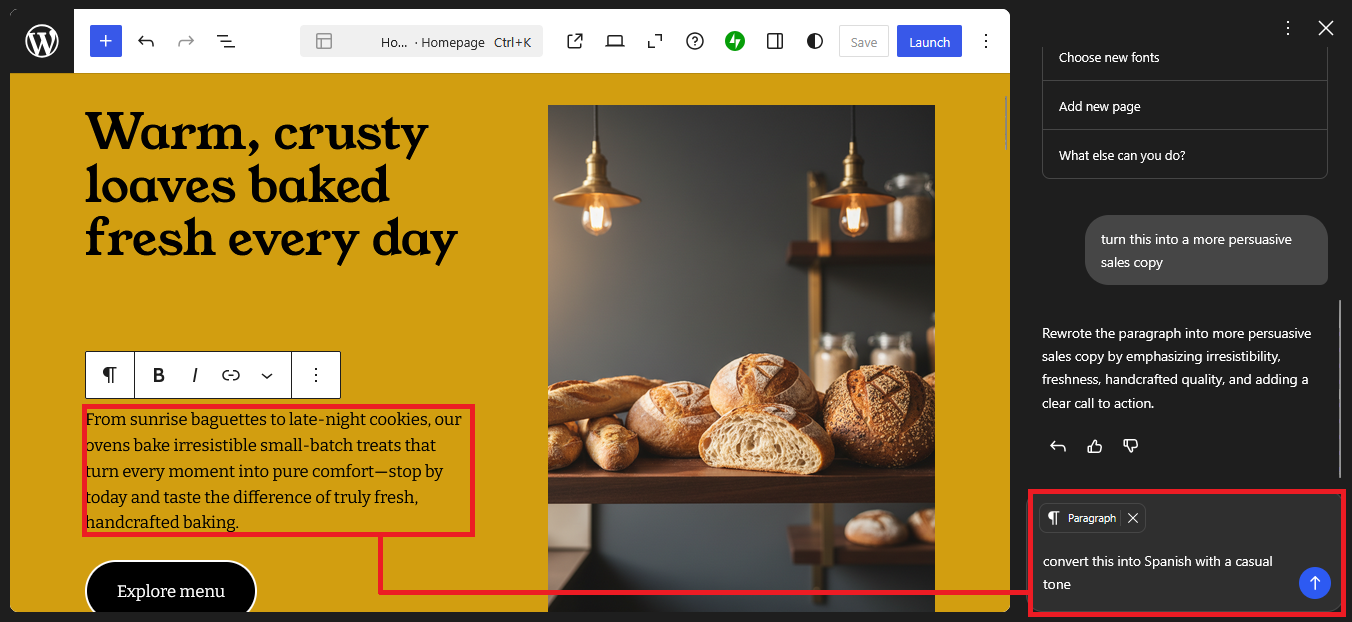
Another feature that feels very practical is the ability to translate your content directly using AI. Just like editing text, I only need to click on the section or paragraph I want to change to select it. After that, I can use the AI tools to translate it into another language without leaving the builder.
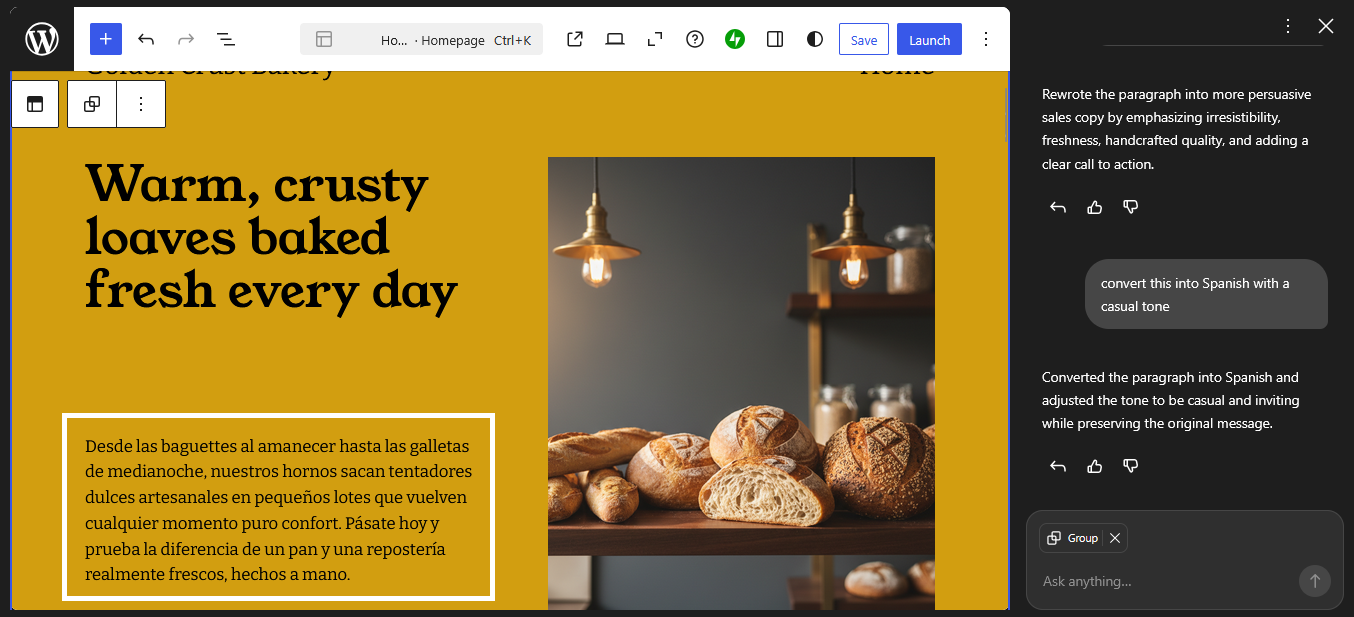
What makes this smooth is how simple the process is. I can type a command like “translate this to Indonesian” or “convert this into Spanish with a casual tone,” and the AI updates the text almost instantly. There’s no need to copy content into external translation tools anymore.
7. Generate and Add New Sections
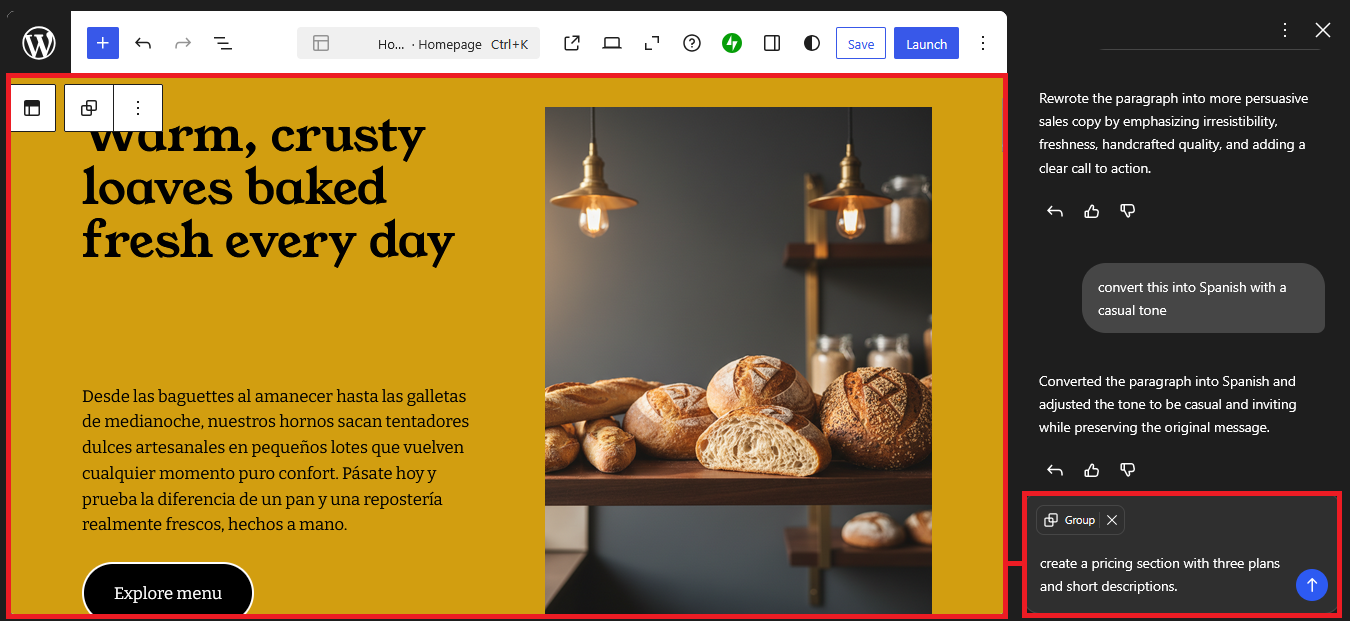
After editing your content, you can continue building the page by adding new sections using AI. Start by placing your cursor in the area where you want the new section to appear on the page. Then at the AI chat panel, type a clear command such as “add a testimonials section for a restaurant” or “create a pricing section with three plans and short descriptions.” The AI will read your instruction and start preparing section options based on your request. Using more specific instructions will help generate more accurate results.
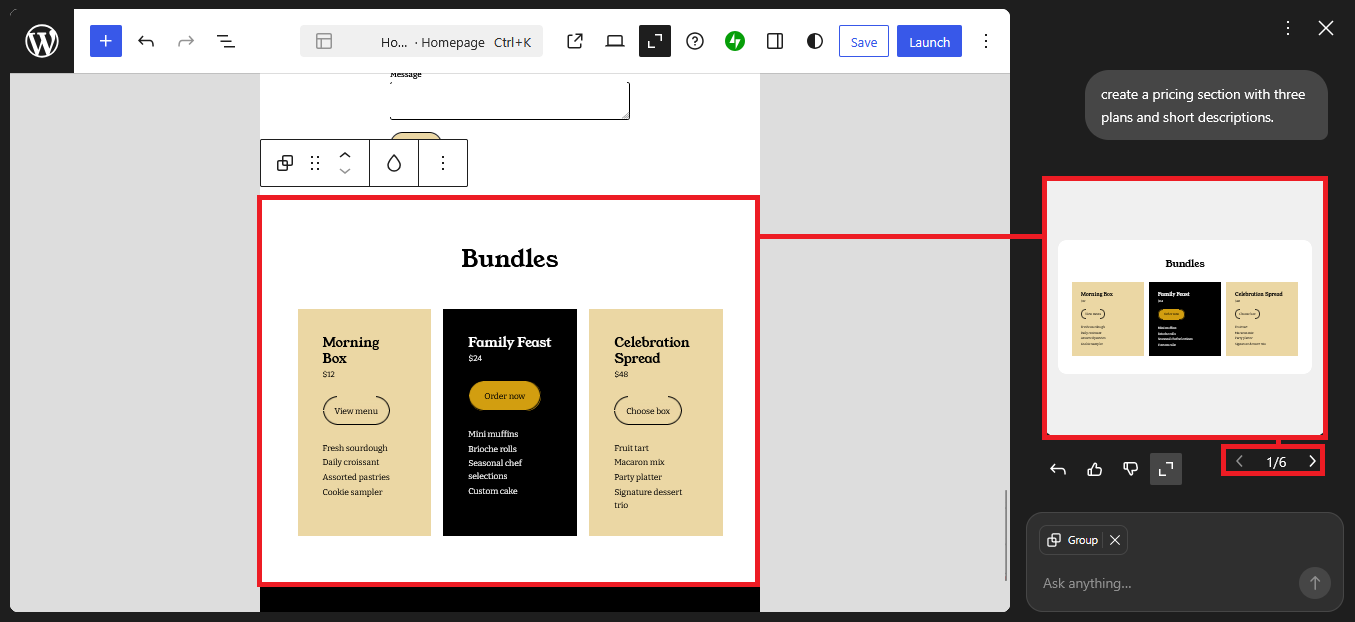
After processing your request, the AI will provide several section templates instead of just one option. Each template includes a different layout, structure, and content arrangement. This allows you to choose a version that best fits your page design.
You can then review the available templates and select the one you prefer. Once selected, the section will be inserted directly into your page automatically. The content and layout will follow the template you chose.
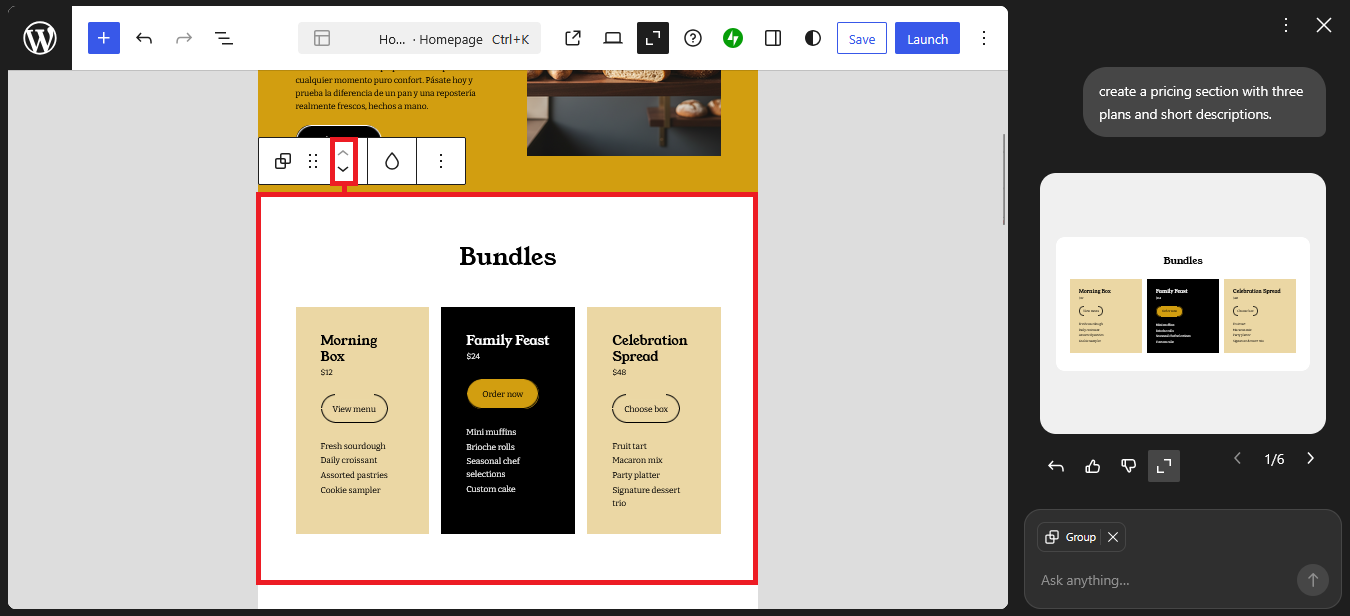
To move the section, click on the block or section until the toolbar appears. Then drag the section using the move handle or use the up and down arrows to reposition it. This allows you to place the section exactly where you want within the page.
If you want to make changes, you can continue using the AI chat panel to refine the section. You can adjust the text, modify the structure, or request a different version. This process can be repeated until the section matches your needs.
8. Change Section Colors
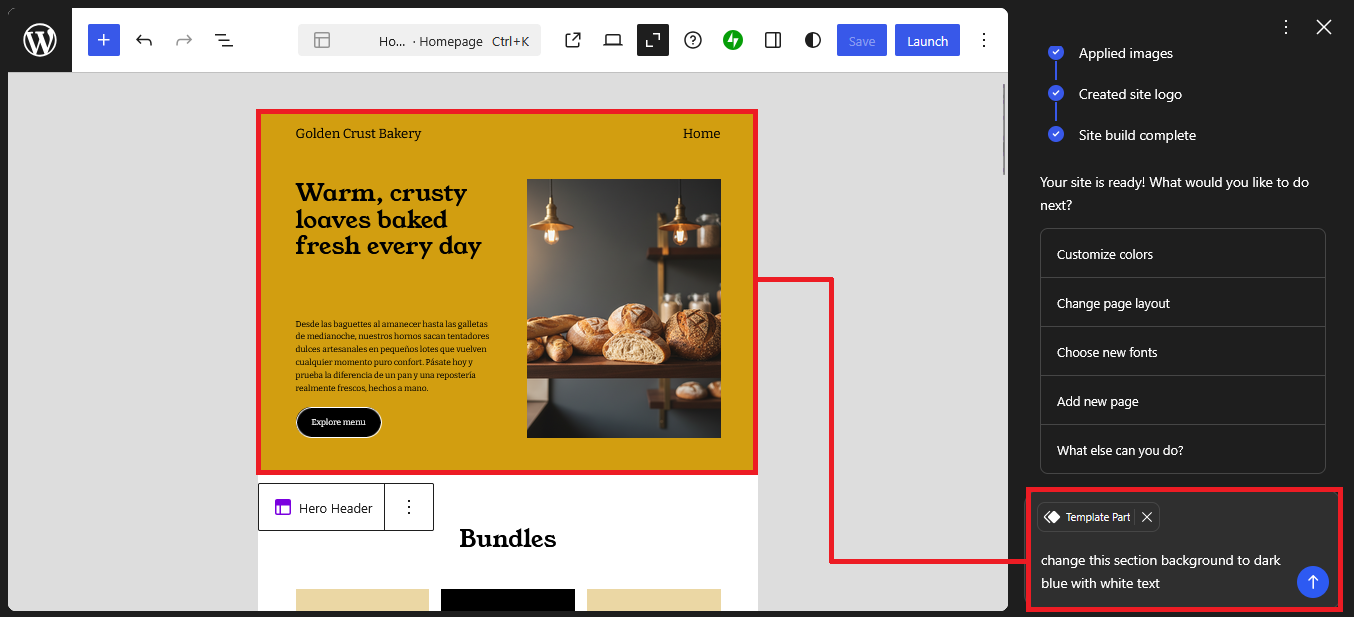
After adding and arranging your sections, you can continue refining the design by adjusting their colors using AI. Start by clicking on the section you want to edit until it is selected. Then open the AI chat panel from the editor to begin.
Type a command such as “change this section background to dark blue” or “make the background light gray with white text.” The AI will read your instruction and apply the color changes to the selected section. Be specific with the colors and elements you want to modify.
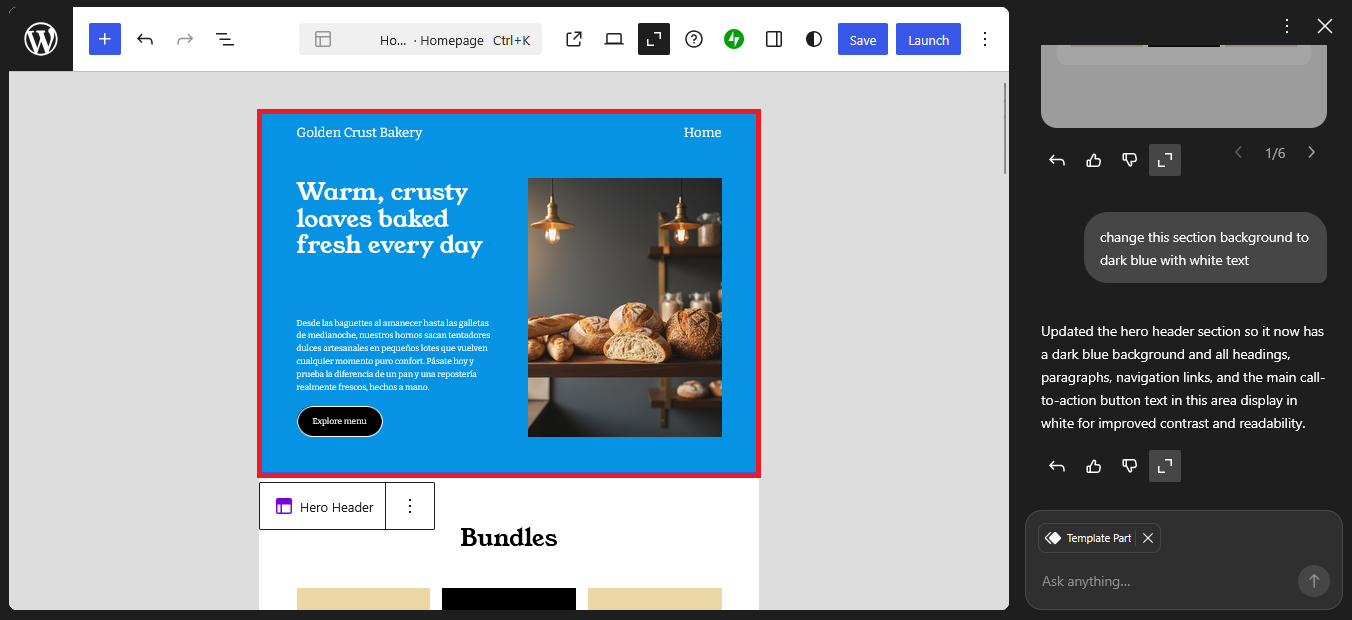
Once the command is submitted, the section colors will update automatically on the page. The background, text, or other color elements will change based on your request. This happens instantly without opening manual style settings.
If the result doesn’t match your expectation, you can enter another command to adjust it. For example, you can type “make the color softer” or “use a more vibrant tone.” The AI will update the section again according to your new instruction.
9. Replace and Customize Buttons
After adjusting the header layout, you can continue refining your page by changing buttons using AI. Start by clicking on the button you want to replace or edit until it is selected. Then open the AI chat panel to begin giving instructions.
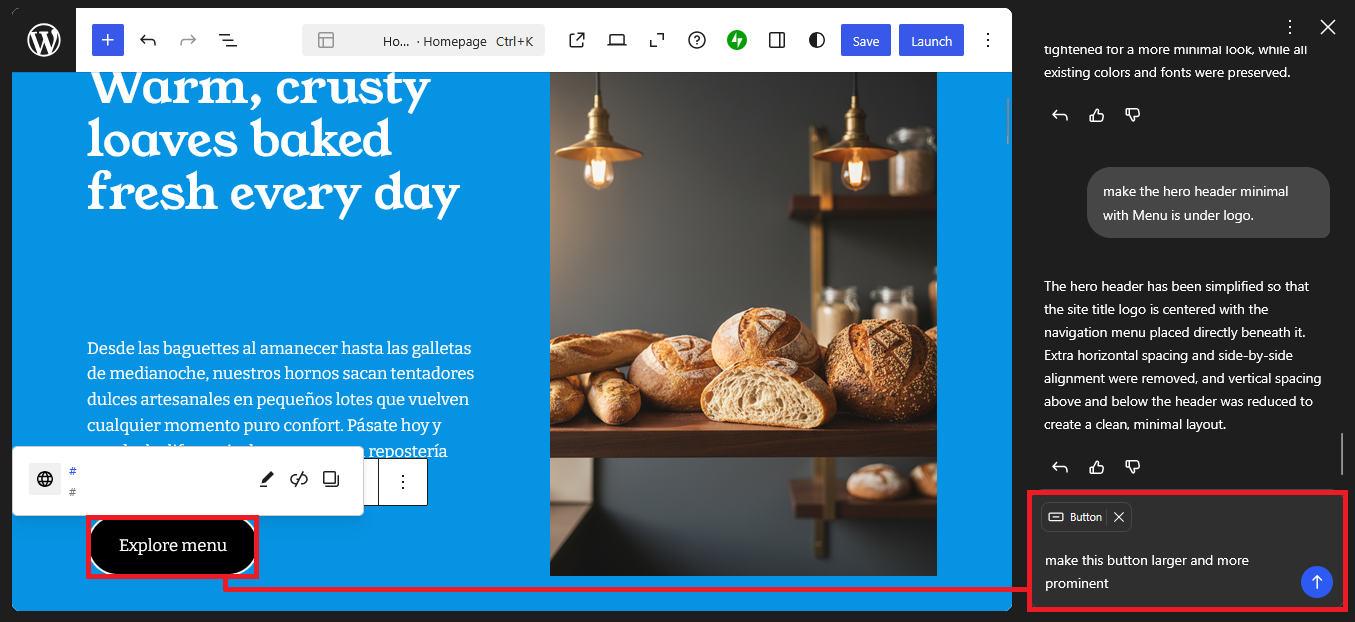
Type a command such as “change this button text to Get Started” or “replace this button with a Download Now button.” The AI will process your request and update the button based on your instruction. You can control both the text and the purpose of the button through simple commands.
Once the command is submitted, the button will be updated directly on your page. This can include changes to the label, style, or function depending on what you requested. The update happens instantly without opening manual settings.
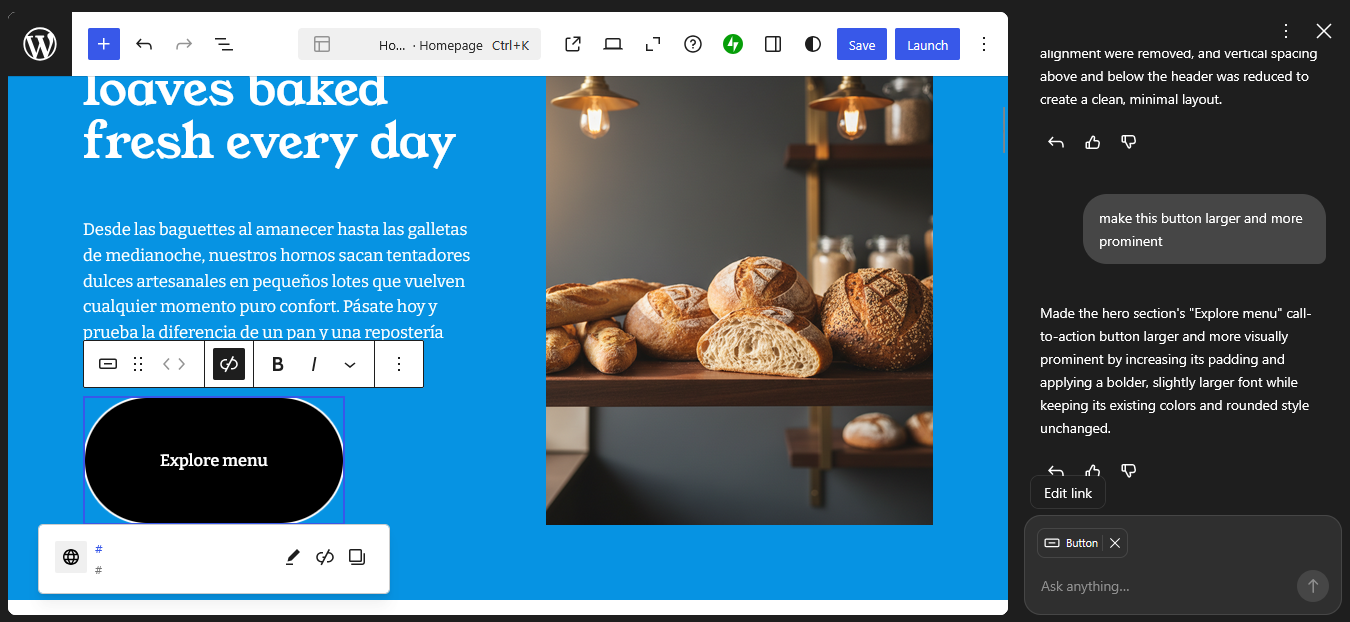
If you want to modify it further, you can enter another command like “make this button larger and more prominent” or “change the button color to green.” The AI will apply the new adjustments based on your input. This allows you to refine the button step by step.
10. Create a New Page
After finishing your current page, you can continue by creating a completely new page using AI. Start by going to the page management area and selecting the option to add a new page. Once the new page is open, you can begin using the AI chat panel.
Type a command such as “create an About Us page for a digital marketing agency” or “generate an About page with company story, mission, and team section.” The AI will process your instruction and prepare the page structure along with its content. Make sure your instruction clearly describes the type of page you want.
After submitting the command, the AI will generate the full page layout automatically. This usually includes multiple sections such as introduction, company background, and other relevant content blocks. Everything will be placed directly into the new page.
You can then review the generated page and make adjustments if needed. For example, you can refine the text, regenerate certain sections, or add new elements using additional AI commands. This allows you to shape the page according to your needs.
You can repeat the same process to create other pages like services, contact, or landing pages. Simply create a new page and give a different instruction in the AI chat. This makes it easier to build a complete website structure quickly.
Things You Should Know
Before you start using the AI Website Builder from WordPress.com, there are a few important things you should understand. These points will help you avoid confusion while using the tool. It also makes it easier to plan how you want to build your website.
The first thing to know is that you can try it for free without any upfront payment. You can generate a website, edit content, and explore the main features right away. This gives you a chance to test how the AI builder works before committing to a paid plan.
However, the free version comes with limits, especially when it comes to AI usage. The more you use features like generating content or editing with AI, the faster you will reach that limit. This is something to keep in mind if you plan to build multiple pages.
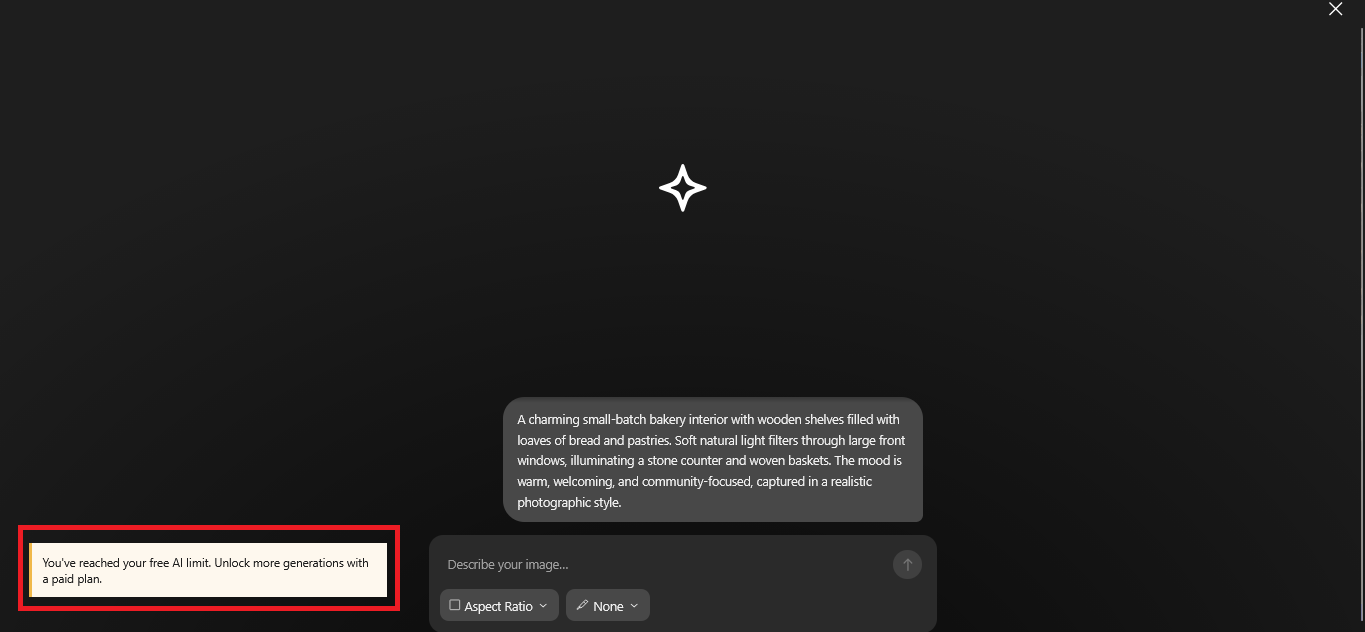
When your AI usage limit is reached, you will receive a notification inside your WordPress dashboard. This notification lets you know that you can no longer use AI features until you upgrade to a paid plan. At this point, upgrading becomes the next step if you want to continue using AI without interruption.
Upgrading to a paid plan gives you a higher AI usage limit, which is useful for larger or more complex websites. It allows you to generate more content, edit more sections, and work more freely with AI tools. This is especially helpful if you are building a multi-page website.
In addition to higher AI limits, the paid plans also unlock more features within WordPress.com. You can install plugins, which gives you access to additional functionality and customization options. You can also use a custom domain like businessname.com or businessname.net for a more professional look.
Another benefit is that you get a free domain for the first year when you upgrade. This can help reduce your website costs during the initial setup phase. In many cases, this saves you tens of dollars in your first year of building a website.
>>> Try WordPress Website AI For Free <<<
Final Thoughts
After going through all these features, it’s clear that the AI Website Builder from WordPress.com is designed to simplify how websites are created. It removes many of the usual barriers that make people hesitate to start a site. At the same time, it still gives you enough control to shape the final result.
What makes it stand out is how it balances automation with flexibility. The AI helps you generate structure, content, and design, but you’re not locked into anything. You can still edit, move, and customize every part of your website as needed.
Of course, it’s not meant to replace your input completely. You still need to adjust the content, refine the design, and make sure everything fits your brand. But having a strong starting point makes the entire process faster and more manageable.
If you’ve been thinking about building a website but feel overwhelmed by where to start, this tool can make things much easier. You don’t need advanced technical skills to get something up and running. The AI handles the heavy lifting so you can focus on the bigger picture.
In the end, the value of this builder really depends on how you use it. The more clearly you guide the AI and refine the results, the better your website will turn out. It’s not just about speed, but about working smarter with the tools available.