



How to fix WordPress email delivery issues – If your WordPress site isn’t sending emails, you’re not alone. It’s one of those frustrating problems that usually shows up at the worst possible time — when someone fills out your contact form, requests a quote, or tries to reset their password… and nothing ever reaches your inbox. No errors. No warnings. Just silence.
The tricky part? Everything looks like it’s working. Your form submits successfully. You even see a confirmation message on the screen. But behind the scenes, the email simply never gets delivered. And if you’re running a business website, that could mean missed leads, missed opportunities, and lost revenue.
In most cases, the issue isn’t your form plugin. It’s not your theme either. The real problem usually comes from how WordPress handles outgoing emails by default. Instead of using proper email authentication, it relies on the basic PHP mail function provided by your hosting server — and many hosting environments either restrict it or don’t configure it properly.
Before we go any further, let’s clarify something important. In this article, when we say “WordPress,” we’re referring to self-hosted WordPress from WordPress.org, not WordPress.com. If you’re not sure what the difference is, you might want to read our guide on “What is WordPress?” first. It explains how WordPress.org gives you full control over plugins, themes, and server configuration — which is exactly why fixing email delivery issues is possible in the first place.
If you’re using WordPress.com, especially on lower-tier plans, you don’t have the same level of access to install custom SMTP plugins or configure mail settings freely. So the solution we’re about to discuss applies specifically to WordPress.org websites hosted on your own server or hosting provider.
The good news? This problem is completely fixable. You don’t need advanced technical skills, and you definitely don’t need to hire a developer just to get your emails working properly again. In most cases, setting up SMTP correctly solves the issue once and for all.
In this guide, we’ll walk through the quick and simple solution to fix WordPress email delivery issues – step by step – so your contact forms, notifications, and transactional emails actually reach the inbox where they belong.
How to fix WordPress Email Delivery Issues
Before we jump into the actual steps, there’s one important thing you need to understand. Fixing WordPress email delivery issues with SMTP only works if you actually have a working email service behind it. SMTP is not magic – it doesn’t create an email service out of thin air. It simply connects your WordPress site to a real mail server.
This means the solution in this guide is intended for WordPress.org websites that already have access to an email account from their hosting provider (like cPanel email) or from a third-party email service such as Google Workspace, Microsoft 365, Zoho Mail, or any other SMTP-enabled provider. If your hosting plan does not include email services and you haven’t subscribed to an external mail provider, this setup will not work for you yet.
Some modern hosting providers focus purely on web performance and deliberately exclude email services. If that’s your situation, you’ll need to subscribe to an email provider first before configuring SMTP in WordPress. Without valid SMTP credentials (host, port, username, password), WordPress simply has nothing to connect to.
So before continuing, make sure you have an active email account ready to use. Once that’s confirmed, we can move forward and properly configure WordPress so your contact forms and system notifications finally reach your inbox.
1. Install the FluentSMTP Plugin
The first step is installing an SMTP plugin, and in this guide we’ll be using FluentSMTP. It’s a free and reliable SMTP plugin designed specifically for WordPress.org websites. Unlike many alternatives, FluentSMTP does not lock essential features behind a paywall, and it supports multiple mail providers out of the box.
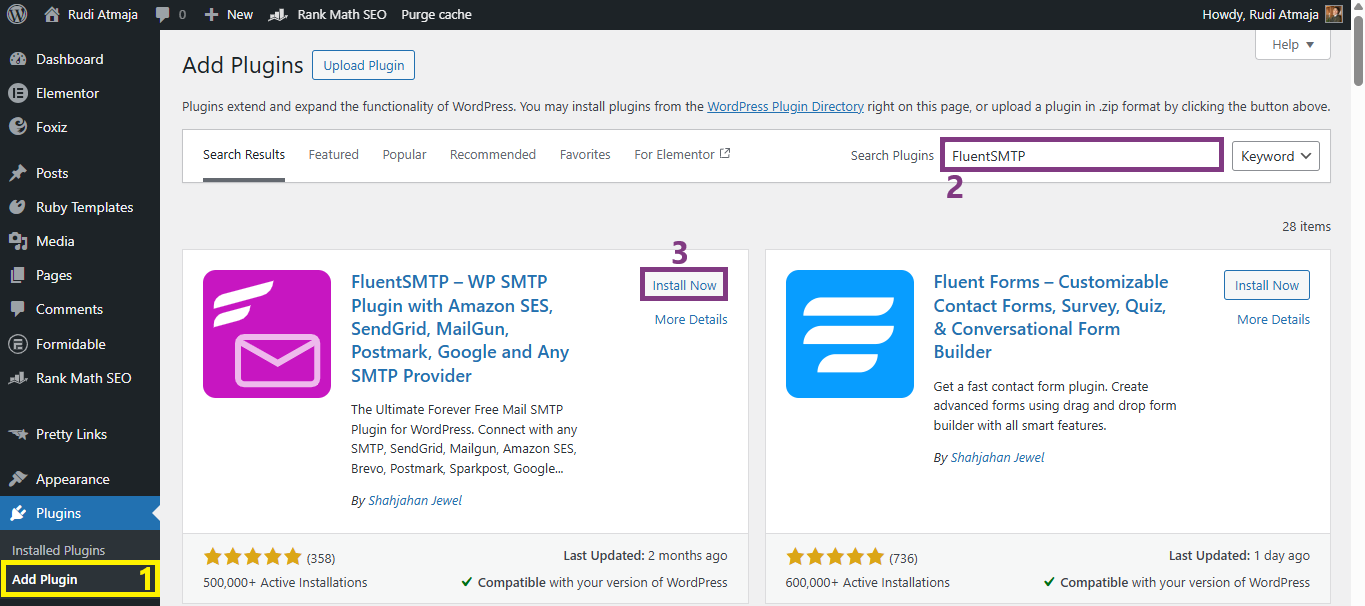
To install it, log in to your WordPress dashboard. Go to Plugins → Add New, then type FluentSMTP into the search bar. Once it appears in the search results, click Install Now, and after the installation finishes, click Activate.
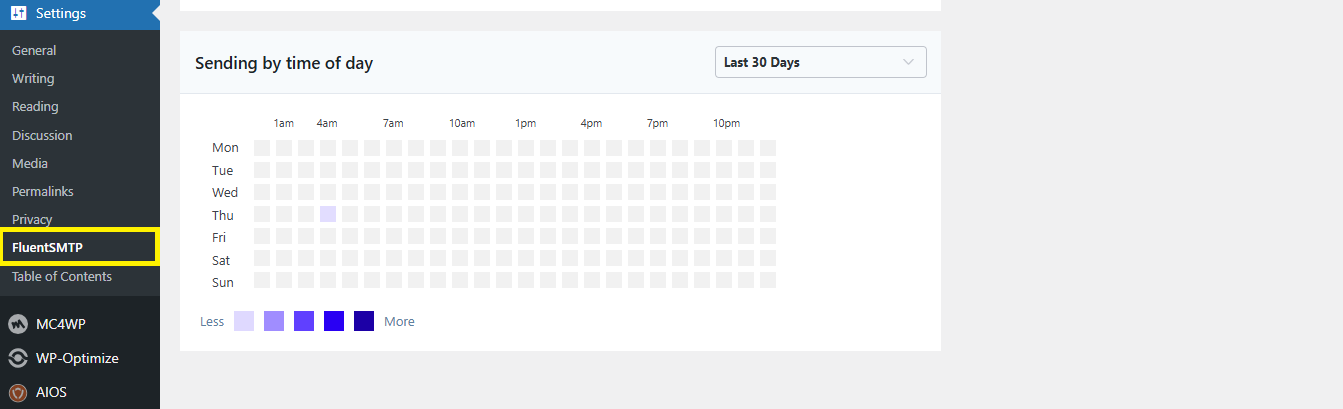
After activation, you’ll see a new menu item called FluentSMTP in your WordPress dashboard. This is where all email configuration settings will be managed. From here, you can connect your website to your email provider using SMTP credentials or API-based connections.
Make sure the plugin is successfully activated before moving to the configuration step. If you don’t see the FluentSMTP menu, try refreshing your dashboard or confirming that the plugin is active under the Installed Plugins section.
2. Configure SMTP Settings in FluentSMTP
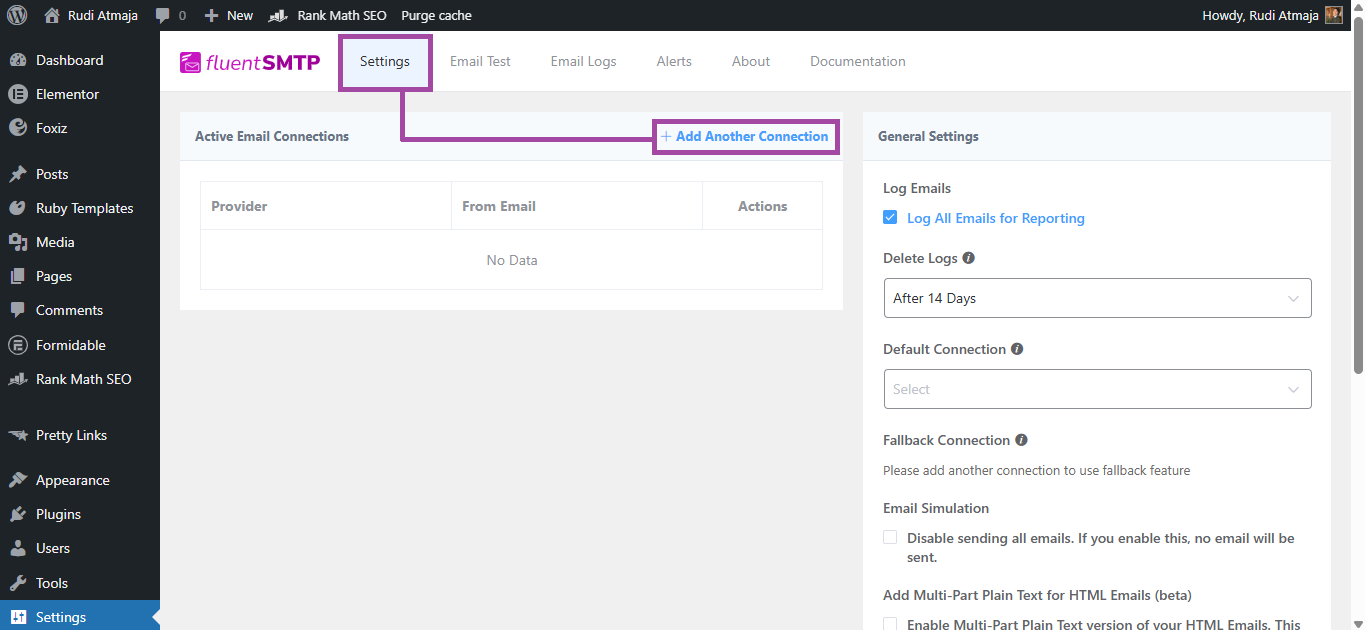
After installing and activating FluentSMTP, the next step is configuring your SMTP connection. Go to FluentSMTP → Settings in your WordPress dashboard, then click Add Connection. You’ll be presented with several mailer options, including SMTP, Gmail, Outlook, Amazon SES, SendGrid, and others.
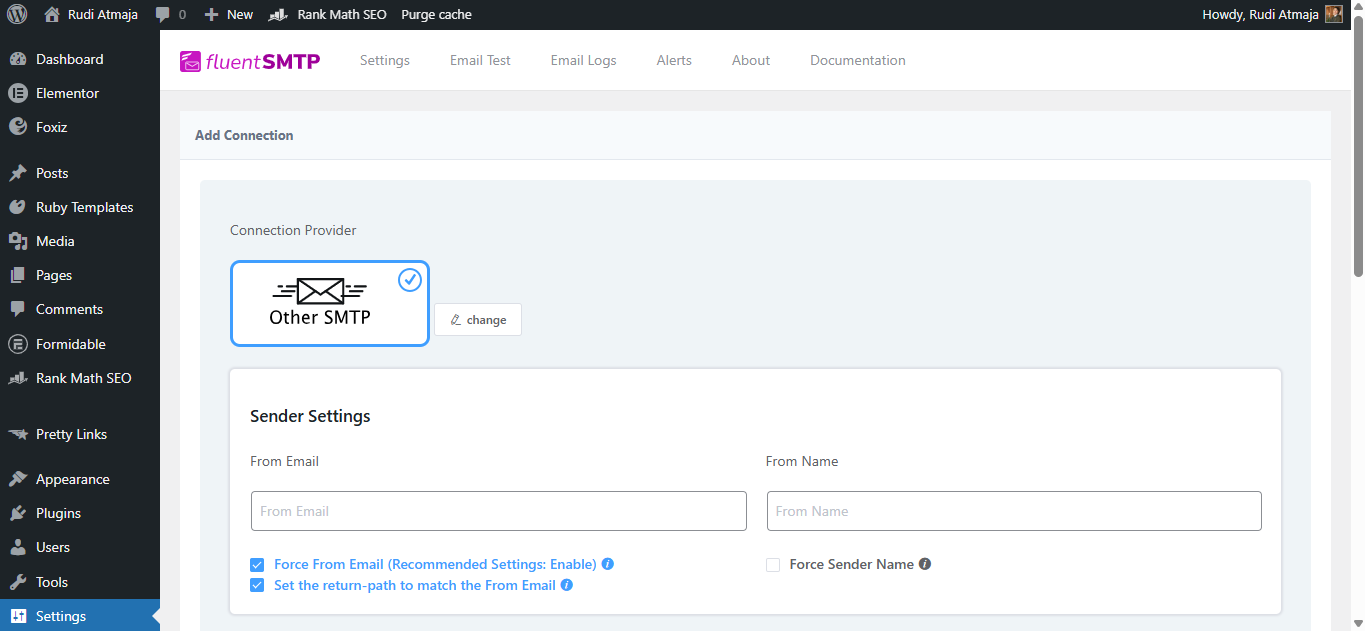
If you’re using email from your hosting provider (such as cPanel email), choose the Other SMTP option. You’ll need to enter your SMTP details manually, including the SMTP host, port number, encryption type (TLS or SSL), username (usually your full email address), and password. These details are typically available in your hosting control panel under email account settings.
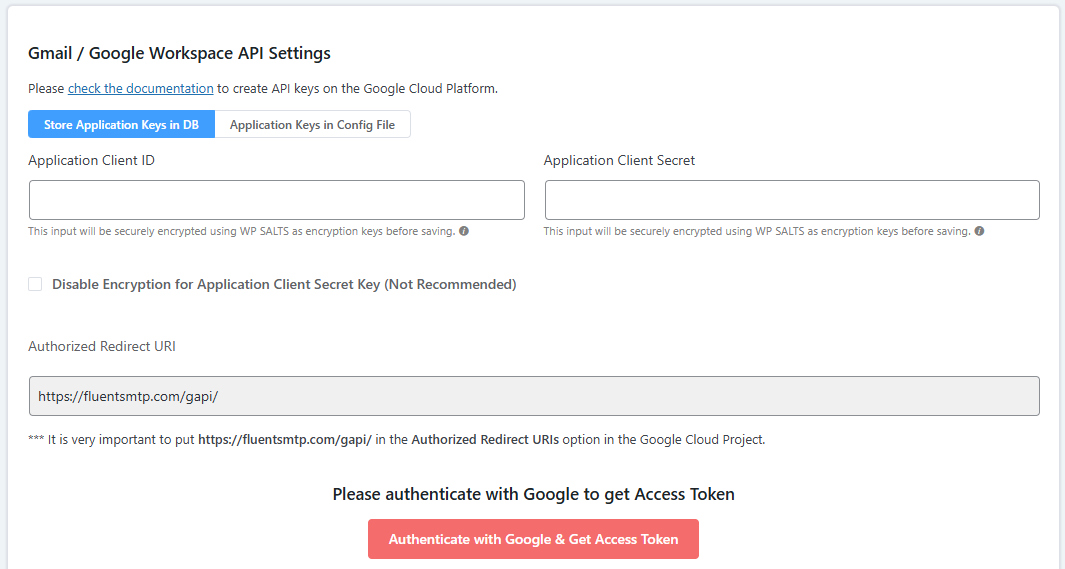
For third-party email services like Google Workspace or Microsoft 365, you can select their dedicated mailer options. In these cases, FluentSMTP may guide you through an API-based authentication process instead of using a traditional username and password. Follow the on-screen instructions carefully, as each provider has slightly different setup steps.
Before saving the connection, make sure your “From Email” matches the email address you are authenticating with. Most mail servers will reject messages if the sender address does not match the authenticated account. Once everything is filled in correctly, save the connection to proceed to testing.
3. Send a Test Email to Confirm Everything Works
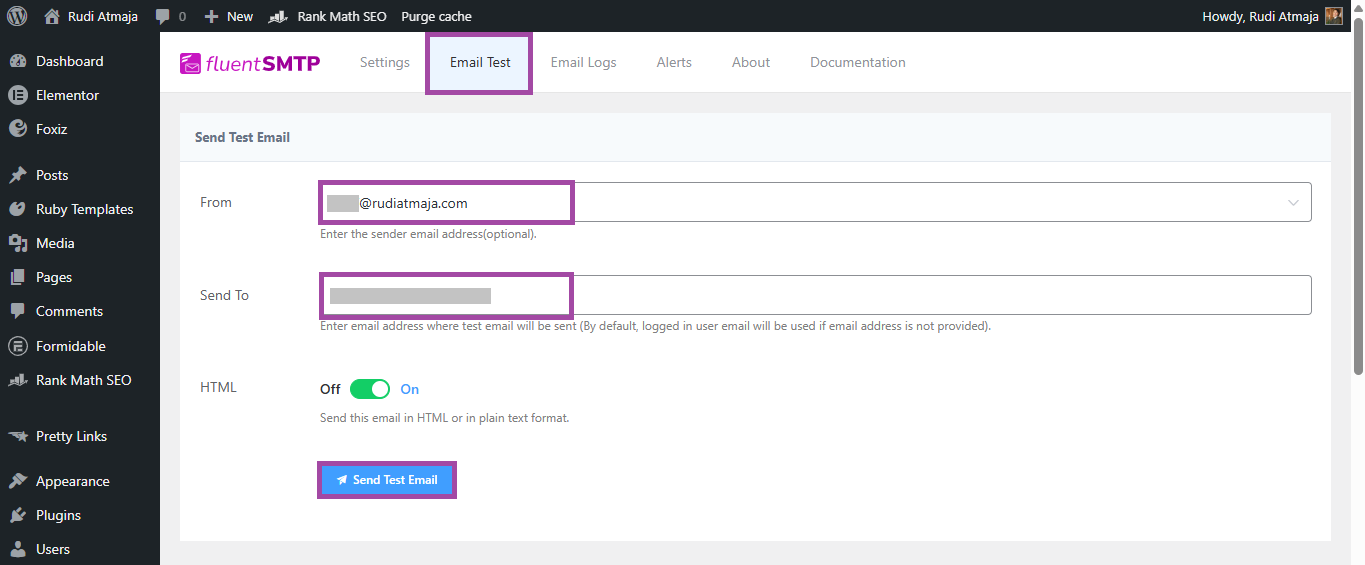
Once your SMTP connection is saved, the next step is to verify that it’s actually working. Inside the FluentSMTP dashboard, look for the Email Test or Send Test Email option. This feature allows you to send a sample email directly from your WordPress site to make sure the connection is properly configured.
Enter an email address that you have access to — ideally the same one you configured as the sender. Then click Send Test Email. If everything is set up correctly, you should receive the message within a few seconds. Check both your inbox and spam folder just in case.
If the test email fails, FluentSMTP will usually display an error message explaining what went wrong. Common issues include incorrect SMTP host details, wrong port numbers, invalid passwords, or mismatched encryption settings. Carefully review the error message and compare your settings with the information provided by your email provider.
After the test email is successfully delivered, your WordPress site is now properly connected to a real mail server. Contact form submissions, password reset emails, order notifications, and other transactional messages will be sent through SMTP instead of relying on the default PHP mail function.
Final Thoughts
WordPress email problems can feel confusing at first, especially when everything seems to work on the surface but no messages ever arrive. In most cases, the issue comes down to how WordPress sends emails by default. Without proper authentication, many servers simply block or silently drop outgoing messages.
By installing and configuring an SMTP plugin like FluentSMTP, you’re giving your website a reliable way to send emails through a real mail server. This improves deliverability, reduces the chances of messages landing in spam, and ensures important notifications actually reach their destination.
The most important thing is making sure you have valid email credentials before setting everything up. Once your SMTP details are correctly configured and tested, the problem is usually resolved permanently. There’s no need for complicated server tweaks or custom code.
If you’ve been missing contact form submissions or wondering why password reset emails never show up, setting up SMTP is often the simple fix that solves it. With the steps outlined in this guide, your WordPress site should now be able to send emails reliably and consistently.